WordPress Maintenance Mode: Complete Setup & Fix Guide

If you’ve ever needed to update or improve your WordPress site, you’ve likely come across Web Maintenance Mode. It’s a valuable tool that allows you to temporarily hide your site while you make essential changes, ensuring your visitors don’t see a work-in-progress.
However, like any tool, it can sometimes lead to unexpected challenges if not set up correctly.
In this guide, we’ll show you exactly how to set up WordPress Maintenance Mode, fix common issues, and ensure your site stays professional and functional during updates. Ready to keep your site running seamlessly? Let’s get started!
Table of Contents
- What is WordPress Maintenance Mode?
- How to Put WordPress Site in Maintenance Mode with a Plugin (Easiest)
- Why is it Important to Put WordPress into Maintenance Mode
- How to Put WordPress in Maintenance Mode Manually?
- What to Consider When You Put Your Site in Maintenance Mode
- What Information Should You Include On the Maintenance Page?
- Troubleshooting WordPress Maintenance Mode Issues
- Conclusion: Keeping Your WordPress Site in Top Shape
- WordPress Maintenance Mode FAQs
What is WordPress Maintenance Mode?

Get Your Free Website Audit
($3,000 Value)
- Uncover performance issues
- Identify SEO opportunities
- Security gaps, and quick wins
WordPress maintenance mode is a temporary state that shows visitors a notice while you work on the site, so they don’t land on broken pages, half-loaded layouts, or error messages during updates.
WordPress can turn this on automatically for short moments, like when you update a plugin or theme, and that’s when you might see the default message:
“Briefly unavailable for scheduled maintenance. Check back in a minute.”
The issue is that this default maintenance mode version is basic, and you don’t control when it appears or what it looks like, which is why most businesses set up maintenance mode properly when they’re making important changes.
When Should You Use Maintenance Mode?
You’d use it when changes could affect the visitor experience, like:
- Updating WordPress core, plugins, or themes
- Switching themes or changing key templates
- Fixing bugs or broken features
- Performance work that could cause errors or layout issues
- Bigger technical changes like migrations or plugin replacements
How to Put WordPress Site in Maintenance Mode with a Plugin (Easiest)
If you want the quickest and least risky way to enable WordPress maintenance mode, a plugin is the easiest option. You can switch it on in minutes, customize the page, and switch it off again when you’re done.
1. LightStart (formerly “WP Maintenance Mode Plugin”)

LightStart is a free, beginner-friendly plugin that lets you show a maintenance mode or coming soon page on your WordPress site. It’s a great choice when you want something fast and simple, without spending time setting up a full design system.
It doesn’t rely on a fancy drag-and-drop builder. Instead, it works with the standard WordPress editor, so you can update the message and page content in a familiar way, without any coding.
Key Features
- Fully customizable design (colors, text, background)
- Maintenance mode, coming soon mode, and landing page templates
- Countdown timer
- Subscription form (with CSV export)
- Contact form (emails sent from the page)
- Social media icons
- Works with any theme + responsive design
- WordPress Multisite support
- SEO options
- Exclude specific URLs from maintenance mode
- “Bot” module for collecting emails in a more interactive way
- GDPR-ready settings
How to Set It Up
Step 1: Install and activate LightStart
Go to Plugins → Add New, search for LightStart, then click Install Now and Activate.

Step 2: Open the LightStart settings
In your dashboard menu, go to Settings → LightStart.
Step 3: Choose the mode and template
You’ll usually see options like Maintenance Mode, Coming Soon, and Landing Page. Choose Maintenance Mode for a live site, then select a suitable template (for example, an “under maintenance” style). Save or continue so the plugin creates the page.

Step 4: Preview the page first
Before you edit anything, use the preview/view option to see what the template looks like on the front end. This helps you know what needs changing.
Step 5: Customize the design and message
Update the headline and body text first so the message is clear. Then adjust the design elements to match your brand, such as:
- Background color or image
- Logo
- Button text and colors
- Any layout sections the template includes

Step 6: Add social links
If the template shows social icons, fill them in with your real profile URLs. Only include the channels you actually monitor while the site is down.
Step 7: Configure access and exclusions (this is the important part)
Go through the main settings and make sure the right people can still work on the site while visitors see the maintenance page.
Set these up if they’re available in your version:
- Allow backend access for admins (and other roles if needed)
- Allow specific pages to stay accessible (for example, contact, booking, support)
- Search bot handling: set the option that deals with crawler access, so you don’t block important bots by accident
Step 8: Turn on the modules you actually need
LightStart can add extras, but keep it focused. Switch on only what supports your goal, such as:
- Email signup/subscriber collection
- Contact form
- Countdown timer (only if you’re confident in timing)
- Analytics tracking (so you can see visits during downtime)
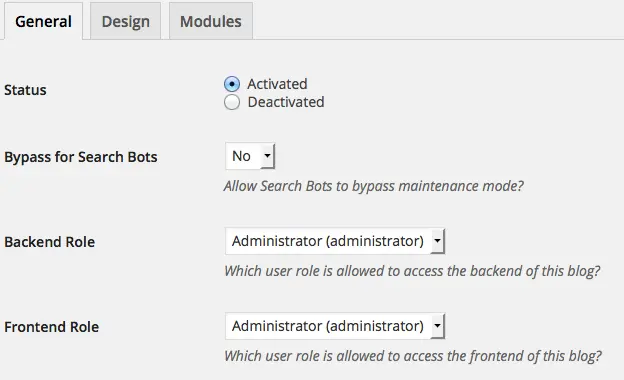
Step 9: Activate maintenance mode and test it properly
Enable maintenance mode, then save your changes. Open your website in an incognito/private window (or a different browser) to confirm visitors see the maintenance page while you still have access as an admin.

Step 10: Deactivate when you’re done and clear cache
When the work is finished, go back to Settings → LightStart, disable maintenance mode, and save settings. If you use caching (plugin, host cache, or CDN), purge it so visitors see the live site immediately.
2. SeedProd (Maintenance Mode & Coming Soon Page Builder)

SeedProd is a popular choice if you want to set up maintenance mode fast, without relying on your theme or the default WordPress editor. It uses a drag-and-drop builder, so you can create a custom maintenance page in minutes and keep the message clear while you work on the site. It’s also useful if you want to collect email signups, show a countdown, or connect the page to your marketing tools.

Slow website wasting your marketing spend?
- Uncover performance issues
- Identify SEO opportunities
- Security gaps, and quick wins
Key Features
- Drag-and-drop page builder
- Large template library for maintenance, coming soon, and landing pages
- Full design control (layout, fonts, colors, backgrounds, sections)
- Mobile responsive designs
- SEO settings for the maintenance page
- Email marketing integrations (plan-dependent) such as Mailchimp, ActiveCampaign, and ConvertKit
- Countdown timer blocks
- Subscriber management/lead capture
- Access controls (so logged-in admins can keep working)
- Custom CSS support
- Google Analytics / tracking integration options
- GDPR-friendly form options when you’re collecting emails
How to Set It Up
Step 1: Install and activate SeedProd
Go to Plugins → Add New, search for SeedProd, then click Install and Activate.
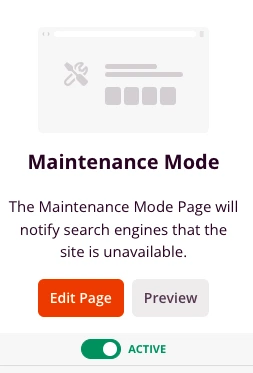
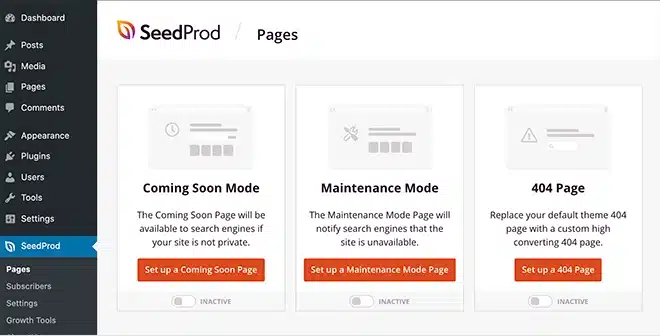
Step 2: Open SeedProd pages
In your WordPress dashboard, go to SeedProd → Pages. You’ll see page modes, including Maintenance Mode.
Step 3: Start the maintenance mode page
Under Maintenance Mode, click the option to set up/create a maintenance page. This opens the template library.
Step 4: Choose a template
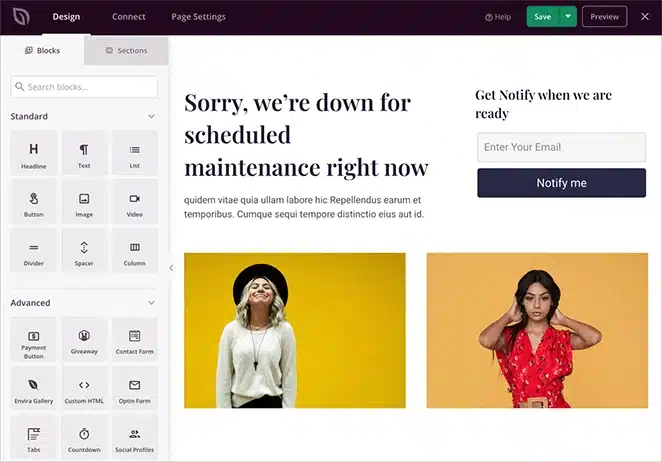
Browse the templates and pick one that suits your site. Select it to launch the builder, then treat it as a starting point you can customize.

Step 5: Customize the page in the builder
Update the message first, then add only what helps visitors take action. A strong setup usually includes:
- Your logo and a short “we’ll be back soon” message
- A return time or countdown (only if the timing is reliable)
- A contact option for urgent enquiries (email or phone)
- Social icons for the channels you actually monitor
- An email signup if downtime might be longer than a quick update
Step 6: Configure the important settings
Before you switch it on, check these settings so you don’t create problems:
- Access control: confirm logged-in admins (and other roles if needed) can still access the site
- SEO settings: ensure the maintenance page is set up correctly for search engines
- Analytics tracking: add your Google Analytics ID or tracking script if you want visibility during downtime
- Form compliance: if you collect emails, add consent text or a checkbox if required
Step 7: Activate maintenance mode
Go back to SeedProd → Pages and toggle Maintenance Mode to active.
Step 8: Preview and test properly
Open your site in an incognito/private window (or a different browser) to confirm visitors see the maintenance page while you still have access when logged in.

Step 9: Deactivate Maintenance Mode
Toggle Maintenance Mode off, save changes, and clear any caching (plugin, host, or CDN) so the live site appears right away.
If you’d rather try a different WordPress maintenance mode plugin, here are two good options:
CMP – Coming Soon & Maintenance Plugin
A simple plugin for creating a coming soon or maintenance page with templates, countdown timers, and email signup options.
Under Construction (by WebFactory)
A quick plugin for launching a maintenance page with basic design settings and support for tracking tools like Google Analytics.
Need expert website maintenance? Check out our professional website maintenance services.
Why is it Important to Put WordPress into Maintenance Mode
Maintenance mode is not just about hiding updates. It is about protecting your visitors’ experience, your website’s reputation, and your search visibility. Turning it on shows that you care about professionalism and quality.
1. Avoid Broken User Experiences
Without maintenance mode, visitors might land on incomplete or broken pages. A simple message keeps their experience smooth and shows that your site is being cared for.
2. Maintain SEO Rankings
When maintenance mode is activated with an HTTP 503 status code, search engines know your site’s downtime is temporary. This helps preserve your rankings and avoids unnecessary indexing issues.
3. Communicate Professionalism
A custom maintenance page shows that you manage your website responsibly. It reassures visitors that you are improving their experience, not abandoning the site.
4. Reduce Downtime Confusion
Unexpected downtime can frustrate users. Maintenance mode clearly explains what is happening and when your site will be back online, reducing confusion and maintaining trust.
How to Put WordPress in Maintenance Mode Manually?
Manual methods are best when you want more control, or when you don’t want to install another plugin just for a short job. They’re also useful on developer-style hosting setups where you manage changes through the server.
Method 1: Use a Page Builder (Elementor Workflow)
If you already use Elementor, this is one of the simplest “manual” options because you’re not adding another plugin just for maintenance mode. You build a maintenance template, then tell Elementor to show it to visitors while you keep working in the backend.
Step 1: Create your maintenance page template
Go to Templates → Theme Builder (or Templates → Saved Templates, depending on your setup) and create a new template/page for your maintenance mode screen. Add your logo, a short maintenance mode message, and an expected return time if you have one.
Step 2: Publish the template
Save and publish the template so Elementor can use it as the maintenance screen.
Step 3: Enable maintenance mode in Elementor
Go to Elementor → Tools → Maintenance Mode.
Step 4: Choose the right mode
Select Maintenance if the site is live and you’re doing updates. Use Coming Soon only if the site isn’t meant to be public yet.
Step 5: Select the template you created
Under the template setting, choose the maintenance template you just published.
Step 6: Set who can access the site while it’s enabled
In the access settings, allow access for at least Administrators so you don’t lock yourself out. If you need a client to preview, you can allow their role too, but keep it tight.
Step 7: Save changes and test properly
Save the settings, then open your site in an incognito/private window to confirm visitors see the maintenance page. Also check that you can still browse the site normally when logged in.
Step 8: Disable it when finished
Go back to Elementor → Tools → Maintenance Mode, switch it off, and clear any caching so the live site shows straight away.
H3: Method 2: WP-CLI Commands(fastest for devs)
WP-CLI is a command-line tool that lets you manage WordPress from the server, instead of clicking around in the dashboard. It’s quick and reliable, but it’s only a good option if you’re comfortable using SSH and terminal commands.
Step 1: Connect to your server (SSH)
Open your terminal and log into your hosting server using SSH. Once you’re connected, go to the folder where WordPress is installed (this is the folder that contains wp-config.php).
Step 2: Turn maintenance mode on
Run:
wp maintenance-mode activateThis enables WordPress’s native maintenance mode by creating a .maintenance file in your site’s root folder.
Step 3: Confirm it’s enabled
Run:
wp maintenance-mode statusYou’ll see whether maintenance mode is active or not.
Step 4: Turn maintenance mode off when you’re done
Run:
wp maintenance-mode deactivateThis disables maintenance mode and removes the .maintenance file, so the site is available again.
When this method is the right choice
WP-CLI is ideal when you’re deploying changes, running updates, or doing migrations on a server, especially if your workflow already uses SSH. It’s also a useful fallback when you can’t access wp-admin and need a clean way to control maintenance mode from the server.
H3: Method 3: Native .maintenance File (FTP/SFTP)
This method turns on WordPress’s built-in maintenance mode by placing a file called .maintenance in your WordPress install folder. As soon as that file exists, WordPress shows its default message to visitors (“Briefly unavailable…”). You don’t get a branded page, so this is best for short maintenance jobs where you just need a quick on/off switch.
Step 1: Connect to your site files
Open your hosting File Manager, or connect with an FTP/SFTP app (SFTP is preferred because it’s secure). If your host gives you SFTP details, you’ll usually have a server address, username, password, and a port (commonly 22).
Step 2: Find the WordPress install folder (root directory)
You need the folder where WordPress is installed. This is often:
- public_html
- www
- htdocs
You’ll know you’re in the right place when you can see wp-config.php and folders like wp-content, wp-admin, and wp-includes.
Step 3: Create a new file named .maintenance
Create a file with this exact name: .maintenance. The dot at the start is part of the filename, so don’t skip it. Some file managers hide dot files by default, so if you can’t see it later, look for a “show hidden files” option.
Step 4: Add the required line of code
Open the file and paste this:
<?php
$upgrading = time();
Save it. The moment this file is saved in the WordPress install folder, visitors will start seeing the default WordPress maintenance screen.
Step 5: Confirm it’s working
Open your website in an incognito/private window (or on your phone using mobile data). You should see the maintenance message instead of your normal site.
Step 6: Turn it off by deleting the file
When your updates are finished, delete the .maintenance file from the same folder. Your site should load normally again immediately.
Important note
If you leave the .maintenance file in place, the site can stay stuck in maintenance mode, so make “delete the file” your final step every time.
Method 4: Add a controlled block via functions.php (advanced)
Adding a small snippet to your theme’s functions.php can force a maintenance page without installing a plugin. The big advantage is control, because you can let specific user roles keep working on the site while everyone else sees the maintenance message.
Back up your site first and ideally test this on staging. A single mistake in functions.php can break the site, so do this carefully.
Step 1: Open functions.php safely
Use SFTP or your host’s File Manager so you can quickly undo changes if something goes wrong. If you use the WordPress editor, go to Appearance → Theme File Editor (or Tools → Theme File Editor on some block themes) and open functions.php for your active theme.
Use a child theme so this doesn’t get overwritten by theme updates.
Step 2: Add the maintenance mode code
Paste this near the bottom of functions.php:
/**
 * Maintenance mode (503) with role-based bypass.
 * Remove this block to disable maintenance mode.
 */
add_action('template_redirect', function () {

    // Allow admins to view the site normally.
    if (is_user_logged_in() && current_user_can('manage_options')) {
        return;
    }

    // Do not block the WordPress dashboard or AJAX requests.
    if (is_admin() || wp_doing_ajax()) {
        return;
    }

    // Keep the login screen accessible (PHP 7.4+ compatible).
    $request_uri = isset($_SERVER['REQUEST_URI']) ? $_SERVER['REQUEST_URI'] : '';
    if (strpos($request_uri, 'wp-login.php') !== false) {
        return;
    }

    // Optional: keep REST API and feeds available (useful for integrations).
    $allow_rest  = true;
    $allow_feeds = true;

    if (!$allow_rest && defined('REST_REQUEST') && REST_REQUEST) {
        wp_die('Service unavailable', 'Maintenance Mode', array('response' => 503));
    }

    if (!$allow_feeds && function_exists('is_feed') && is_feed()) {
        wp_die('Service unavailable', 'Maintenance Mode', array('response' => 503));
    }

    // Send the right status and reduce caching risk.
    nocache_headers();
    header('Retry-After: 3600'); // 1 hour (adjust as needed)

    wp_die(
        '<h1>We’re doing some updates</h1><p>Please check back soon.</p>',
        'Maintenance Mode',
        array('response' => 503)
    );
});
Role-based bypass: this allows anyone with manage_options (usually admins) to see the site as normal. If you want editors to access the site too, change manage_options to edit_posts.
Step 3: Save and test like a visitor
Save the file, then open your site in an incognito/private window to confirm the maintenance message shows. Also confirm you can still access /wp-login.php, and that anything that relies on AJAX still behaves properly.
Step 4: Disable maintenance mode
Remove the full snippet from functions.php and save again. The site will return to normal straight away.
Important warning
If the site goes blank after saving, it’s usually a PHP syntax error. Revert the change via File Manager/SFTP or restore your backup.
Method 5: .htaccess Maintenance Page Redirect (Server-level)
A .htaccess redirect is one of the quickest ways to put a site into maintenance mode because it runs at the server level. Visitors get sent to a custom maintenance mode page before WordPress even has a chance to load, which makes it useful during major updates, migrations, or when the admin area isn’t working properly.
Because .htaccess controls how requests are handled, treat it with care. Always take a backup first, as a small mistake can bring up a server error and make the site inaccessible.
Step 1: Create a maintenance.html page
Open your site files via SFTP/FTP or your host’s File Manager, then go to your WordPress install folder (often public_html, www, or htdocs).
Create a file named:
- maintenance.html
Add a simple message like:
<h1>Website under maintenance</h1>
<p>We’re making a few updates. Please check back soon.</p>
Save it in the same folder where .htaccess lives.
Step 2: Back up and open .htaccess
In the same folder, find .htaccess. Download a copy or duplicate it in File Manager so you can restore it quickly if needed.
Step 3: Add the redirect rules (place them at the top)
Paste this at the very top of .htaccess, above the WordPress rewrite block:
RewriteEngine On
RewriteBase /

# Don't redirect the maintenance page itself
RewriteCond %{REQUEST_URI} !^/maintenance\.html$

RewriteRule ^.*$ /maintenance.html [R=307,L]
That rule redirects any URL to /maintenance.html, while avoiding an endless redirect loop.
Step 4: Test it like a visitor
Open your site in an incognito/private window and try a few URLs. They should all land on /maintenance.html.
If it doesn’t work, make sure:
- The rules are above the WordPress rewrite section
- The file is saved in the correct folder
- Caching isn’t masking changes
Step 5: Disable it when you’re done
Remove the rules you added, save .htaccess, then clear cache (plugin, host, and CDN if you use one). Your normal site should load again.
Multisite note
This works well on WordPress multisite because it runs at the server level, but it will usually affect the entire network. If you only want to take one site down in a network, you’ll need more specific rewrite conditions, so test on staging first.
Optional: Use Your Hosting Panel (Beginner-Friendly)
Many WordPress hosts include a built-in maintenance mode or “site offline” switch in their control panel. This is a good option if you want the simplest setup, or you don’t want to install a plugin just for a short update.
The exact steps vary by host, but the process usually looks like this:
- Log in to your hosting dashboard
- Find WordPress tools, Site tools, or Website settings
- Look for Maintenance Mode, Site Offline, or Coming Soon
- Switch it on, then check your site in an incognito window
When you’re finished, go back to the same setting and switch it off.
A quick warning: some host-level maintenance pages are very basic and don’t always give you full control over SEO settings or the message visitors see. If your site is down for more than a short window, a plugin-based maintenance page is usually better because you can add your branding, contact details, and a clear return time.
What to Consider When You Put Your Site in Maintenance Mode

When placing your WordPress site into maintenance mode, it’s important to keep several key factors in mind:
SEO Considerations:
Ensure you use the correct HTTP status code (503) to signal to search engines that the site is temporarily down. This helps prevent the maintenance page from being indexed, preserving your SEO rankings during downtime.
Clear Communication with Visitors:
Make sure to clearly communicate the reason for the downtime and provide an estimated time for the site to be back online. A simple message like “We’ll be back shortly” works for short downtimes, but for longer periods, consider adding a countdown timer to manage visitor expectations.
Backup Your Site Before Updates:
Always back up your site before enabling maintenance mode. This ensures your data is safe, especially when performing plugin or core updates.
Controlling User Access:
Decide who should have access to the backend of your site while it’s in maintenance mode. Admins may need access to continue work, while it’s best to restrict front-end access to everyone else.
Estimated Duration:
Be mindful of the maintenance duration. Setting a clear time frame for how long your site will be down helps prevent visitors from waiting unnecessarily and reduces frustration.
What Information Should You Include On the Maintenance Page?
A good WordPress maintenance mode page keeps trust high while your site is offline. It should tell visitors what’s happening, what to do next, and how to reach you if it’s urgent.
1) A Clear Message
Start with a simple line that explains the situation, without tech jargon. Visitors don’t need the details, they just need confidence that the site is being worked on and nothing is “broken”.
2) An Expected Return Time
Give a realistic timeframe so people can decide whether to come back later or contact you now. If it’s a short job, “We’ll be back shortly” is often better than an exact time, but for longer work a time window helps set expectations.
3) A Clear Contact Option
If your site generates enquiries, bookings, or sales, you need a fallback so you don’t lose business during downtime. Keep it easy to scan:
- Phone number for urgent enquiries
- Support email or help desk link
- Optional: live chat, only if it’s staffed
4) Links to the Channels You’ll Actually Monitor
Social links are useful if you’re genuinely active while the site is down. Pick one or two channels and make them obvious, so visitors have a place to follow updates or message you.
5) Optional: a “notify me” Signup
If downtime could last more than a quick update, a simple email field can be helpful. Keep the promise tight, like “Get an email when we’re back online”, and don’t turn it into a full newsletter pitch.
6) Branding and Reassurance
Add your logo and match your normal style so people know they’re in the right place. This is especially important for trust, because a plain maintenance page can look suspicious.
If you want to go one step further, add a link to a status page for live updates, but only if you’ll keep it updated.
Troubleshooting WordPress Maintenance Mode Issues
While enabling maintenance mode on WordPress is generally smooth, occasionally you might encounter some hiccups. If you’re facing issues with your site while in maintenance mode, here’s how to troubleshoot and resolve the most common problems.
1. WordPress Site Stuck in Maintenance Mode
Sometimes after an update, your site may remain stuck in maintenance mode. This typically happens if WordPress creates a .maintenance file but fails to delete it after completing updates.
How to Fix WordPress Stuck in Maintenance Mode:
- Access your site through FTP or your hosting file manager.
- Navigate to the root directory and delete the .maintenance file.
- Refresh your browser to see if the site is back online.
- If the issue continues, try clearing your browser cache to ensure you’re not viewing an old cached version of the page.
2. WordPress Maintenance Mode Not Activating
In some cases, maintenance mode doesn’t activate properly, or the page fails to display as expected. This can often be due to conflicts with plugins or incorrect settings.
How to Fix It:
- Check Plugin/Theme Compatibility: Ensure the maintenance mode plugin you’re using is compatible with your WordPress theme and other plugins. Review the plugin’s documentation for any known issues.
- Avoid Updating Multiple Plugins at Once: Updating many plugins at once can cause conflicts. It’s recommended to update one plugin at a time and verify your site after each update to identify the issue.
- Disable the Plugin: If the maintenance mode isn’t displaying properly, try temporarily disabling the plugin by renaming its folder through FTP. Check if the page displays correctly.
- Reactivate Plugins One by One: If disabling the plugin resolves the issue, reactivate your plugins one by one to pinpoint which one is causing the conflict.
- Switch Themes: If disabling plugins doesn’t work, try switching to a default WordPress theme (e.g., Twenty Twenty-One) to determine if your current theme is causing the issue.
3. Browser/Server Caching Issues
Even after enabling or disabling maintenance mode, your browser may show a cached version of the maintenance page instead of the live site.
How to Fix It:
- Clear your browser cache to make sure you’re not seeing an old version of the page.
- If you’re using caching plugins, clear the cache in those plugins, as well as any server-side cache or CDN cache.
- Open the page in an incognito window to confirm the issue is fixed.
4. WordPress Plugin/Theme Conflict
Conflicts between plugins or themes can cause maintenance mode to break, often resulting in an incomplete or incorrect maintenance page.
How to Fix It:
- Switch to a default WordPress theme like Twenty Twenty-One to check if the issue is theme-related. If the problem disappears, your theme is likely the culprit.
- Disable all plugins by renaming the plugins folder via FTP. Reactivate them one by one to find the problematic plugin.
5. Redirect Loops
A common issue is when your site gets stuck in a redirect loop between the maintenance page and the main site. This often happens due to incorrect .htaccess rules.
How to Fix It:
- Check your .htaccess file for any rules related to the maintenance page.
- Remove or correct any redirect rules that might be causing the loop.
- Make sure the standard WordPress .htaccess rules are intact and that no conflicting custom rules exist.
6. White Screen of Death (WSOD)
A blank white screen can appear if there’s a conflict between your maintenance mode plugin and your theme or plugins, or due to PHP errors or memory limitations.
How to Fix It:
- Switch to the Default Theme: This helps isolate whether the issue is related to your current theme.
- Deactivate Plugins: If switching themes doesn’t solve the issue, deactivate all plugins via FTP. Reactivate them one by one to identify the problematic plugin.
7. Database Issues
If there are issues with your database while the site is in maintenance mode, you might encounter connection problems or errors.
How to Fix It:
- Ensure your database credentials in wp-config.php are correct.
- Add define(‘WP_ALLOW_REPAIR’, true); to your wp-config.php file to enable the WordPress repair function.
- Visit http://yoursite.com/wp-admin/maint/repair.php to repair and optimize your database.
Conclusion: Keeping Your WordPress Site in Top Shape
Now that you’ve learned how to activate maintenance mode, customize your page, and troubleshoot issues, you’re ready to keep your WordPress site running smoothly during updates. Whether you go manual or use plugins, you can ensure minimal disruption for your visitors and maintain SEO integrity.
Need Help? Let our dedicated WordPress developers take care of it!
If you’d prefer a hassle-free solution, our expert WordPress maintenance services have you covered. We’ll keep your site secure, up-to-date, and fully functional, so you can focus on growing your business.
Contact us today to learn how we can support your website!
WordPress Maintenance Mode FAQs
What is the Difference Between Coming Soon and Maintenance Mode?
Coming Soon mode is typically used when a website is being built or launched for the first time. It shows a page informing visitors that the site is under construction and will be available soon.
Maintenance Mode, however, is used when a WordPress site is temporarily down for updates or fixes. It allows administrators to work on the site without displaying errors or incomplete pages to visitors.
How to Enable Maintenance Mode in WordPress cPanel?
To enable maintenance mode in WordPress via cPanel, you can either use the built-in “Maintenance Mode” feature or manually edit the .maintenance file through the File Manager in cPanel. Alternatively, you can use a WP maintenance plugin for an easier solution that automatically adds a temporary page for visitors during updates.
How Long Does WordPress Maintenance Take?
The time required for maintenance depends on the complexity of the changes being made. Minor updates might only take a few minutes, while more significant updates, such as core WordPress or plugin upgrades, could take several hours. Always plan for downtime depending on the scope of the update.
Does Maintenance Mode Affect SEO?
When configured correctly with an HTTP 503 status code, maintenance mode does not harm your SEO. This status code tells search engines that the downtime is temporary, preventing the maintenance page from being indexed and protecting your site’s search engine ranking during the process.
How to Disable Maintenance Mode in WordPress?
To disable maintenance mode, simply remove the .maintenance file from the root directory using an FTP client or your hosting provider’s file manager. If you’re using a maintenance plugin, you can deactivate it directly from the plugin settings to bring the site back online.
What to Do If You Can’t Log in During WordPress Maintenance Mode?
If you’re unable to log in while your WordPress site is in maintenance mode, try the following steps:
- Remove the .maintenance File: Access your site via FTP and delete the .maintenance file from the root directory.
- Clear Your Cache: Clear both your browser cache and any cache from caching plugins.
- Disable Plugins: Rename the plugins folder via FTP to disable all plugins, then reactivate them one by one to identify the conflict.
What is WordPress Default Maintenance Mode?
WordPress automatically activates default maintenance mode during updates. It displays a simple message informing visitors that the site is temporarily unavailable. This built-in mode is basic and cannot be customized. If you want features like a countdown or custom messaging, you’ll need to use a dedicated maintenance mode plugin.

Get Your Free Website Audit
($3,000 Value)
- Uncover performance issues
- Identify SEO opportunities
- Security gaps, and quick wins